





Spinbetter Without an App Store Listing: How the Phone Setup Works
Searching an app store for Spinbetter and finding nothing there is expected rather than a sign of a missing feature. Access on a phone runs through two separate routes instead of one store listing: a downloadable package for Android, and a browser-based shortcut for iPhone that behaves like an app once it’s added to a home screen. Neither route is a workaround; both lead to the same account as the desktop site, with the same balance, the same game library and the same bonus terms attached.
The two routes aren’t interchangeable in how they’re set up, though, and knowing which steps apply to which phone avoids a fair amount of confusion the first time round.
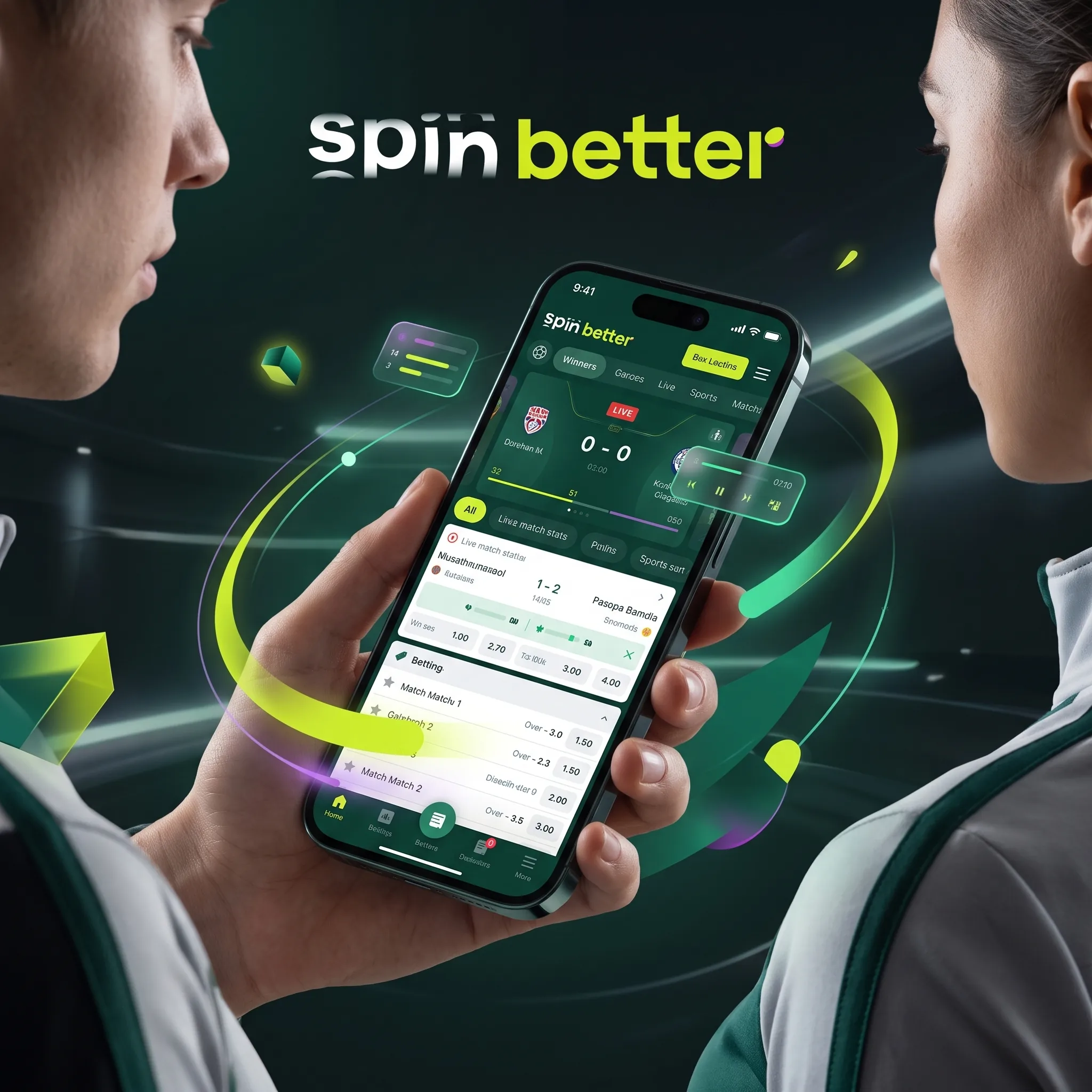
Both phone routes open the same game library and sportsbook described in the Spinbetter casino and sportsbook overview.
Two Phones, Two Routes to the Same Account
An Android phone installs a package directly rather than pulling an app from a store; an iPhone instead saves a browser shortcut that opens straight into the site without the address bar or usual browser controls showing. Both end up looking and behaving like a normal app icon on a home screen, but the installation step behind each is genuinely different, and mixing up the instructions for one while holding the other phone is the most common early stumbling block.
Installing the Android Package Outside a Store
The Android route means downloading an installation file directly rather than through Google Play, which requires allowing installation from outside the usual store source in the phone’s settings before the file will open. That setting only needs adjusting once, and it doesn’t need to stay on afterward if a phone’s owner would rather revert it once the package is installed. Keeping the file from a source directly connected to the account, rather than a copy passed along elsewhere, is the main thing worth being careful about at this step.
- Download the packageDownload the Android installation file directly from the account site, rather than from a forwarded copy.
- Allow the installation sourceIn the phone settings, allow installation from a source outside the usual app store.
- Open the fileOpen the downloaded file to install the package. The outside-source permission can be turned off afterward.
Adding the iPhone Shortcut That Behaves Like an App
On an iPhone, opening the site in the browser and using the option to add it to the home screen produces an icon that opens without the browser’s usual toolbar, closely resembling a native app. There’s no installation file involved at all here, no permission prompt to allow an outside source, and no store review process; the shortcut simply points back to the same site every time it’s tapped. Because it’s a shortcut rather than a separate installed app, clearing a browser’s data or reinstalling the browser itself can sometimes remove it, and it’s easily re-added the same way if that happens.
- Open the siteOpen the genuine Spinbetter site in the iPhone browser.
- Add the shortcutUse the browser option to add the site to the home screen.
| Device | Route | What to check before first use |
|---|---|---|
| Android phone | Downloaded installation package | Installation-source setting, and that the file came from the account’s own site |
| iPhone | Home-screen browser shortcut | That the shortcut was added from the genuine site rather than a search result link |
| iPad or tablet | Either route, depending on the operating system | Screen size and orientation before a live table session |
What Actually Changes Between Phone and Desktop
Very little changes in terms of features: the same game library, the same sportsbook, the same cashier and the same bonus terms apply on either device. What does change is the layout, since a live table or a detailed bonus terms page reads differently on a smaller screen, and some table games are easier to follow with the phone turned sideways rather than upright. A wagering cap or a self-exclusion setting entered on a desktop applies just as fully on the phone route and vice versa, since both simply access the one account rather than two separate versions of it.
That shared balance also keeps the conditions of the Spinbetter welcome bonus in force when play moves from desktop to phone.
Updates and Why They Sit Outside the Usual Store Cycle
A store-listed app usually updates itself quietly in the background; a sideloaded Android package generally doesn’t, since it sits outside the store’s own update mechanism entirely. In practice that means checking back for a newer installation file every so often rather than assuming one will simply appear, particularly if a feature mentioned elsewhere on the site doesn’t seem to show up on the phone. The iPhone shortcut avoids this concern altogether, since it isn’t a separate installed file to begin with; opening it simply loads whatever the site currently looks like, the same as a bookmark would.
Keeping a Session Readable on a Small Screen
A live dealer table, in particular, packs betting options, a video feed and a running history into a small space, and turning the phone sideways for that specific game type usually makes the layout considerably easier to read than holding it upright. A slot session tends to work fine either way, since the controls are simpler and take up less of the screen regardless of orientation. Data usage is worth a glance too: a live video feed uses noticeably more mobile data over a session than a spin-based slot game does, which matters most on a limited mobile plan.
When the Phone Route Needs a Fresh Login
A new phone, a reinstalled Android package, or a cleared browser on iPhone all mean logging in again rather than picking up automatically where a previous session left off. That’s expected behaviour rather than a fault, and it doesn’t affect the balance, any bonus in progress or a pending withdrawal, all of which stay tied to the account rather than to any specific device. Losing a connection mid-session on either route, whether from a dropped signal on a train or a phone switching between mobile data and Wi-Fi, generally just pauses the current round rather than cancelling it outright, though a live table round in progress may resolve according to the table’s own rules if a reconnection takes too long.
Anyone setting up the account on a new device can check the contact details and later identity checks covered in Spinbetter registration.
FAQ
No, Android access uses a directly downloaded installation package, and iPhone access uses a browser shortcut added to the home screen, rather than either app store.
It behaves like one once added to the home screen, but technically it’s a browser shortcut rather than an installed application, which is why clearing browser data can occasionally remove it.
Yes, the game library, sportsbook, cashier and bonus terms are identical; only the layout adapts to the smaller screen.
It’s a standard installation file rather than an unusually large one, though available storage is worth checking on an older phone with limited space.
Nothing changes about the bonus itself; wagering progress, the deadline and the maximum stake are all tied to the account, not to the device being used at a given moment.
Most rounds pause rather than cancel outright on a dropped connection, though a live table round in progress may resolve under the table’s own rules if reconnecting takes too long.
The same account credentials used elsewhere; a fresh login is required on any new device or after reinstalling the Android package or clearing an iPhone browser’s data.
Not in the way a store-listed app usually does; since it sits outside the store’s update system, checking back for a newer installation file periodically is the more reliable habit.
The information is identical, but a smaller screen benefits from turning the phone sideways for a live table specifically, since the video feed, betting options and history all fit more comfortably that way.